
During your account creation with Tyntec, you have specified which phone number(s) you want to use. You can find more information on the Tyntec onboarding here: https://www.tyntec.com/docs/whatsapp-business-api-account-information-get-started
GoTallo Configuration
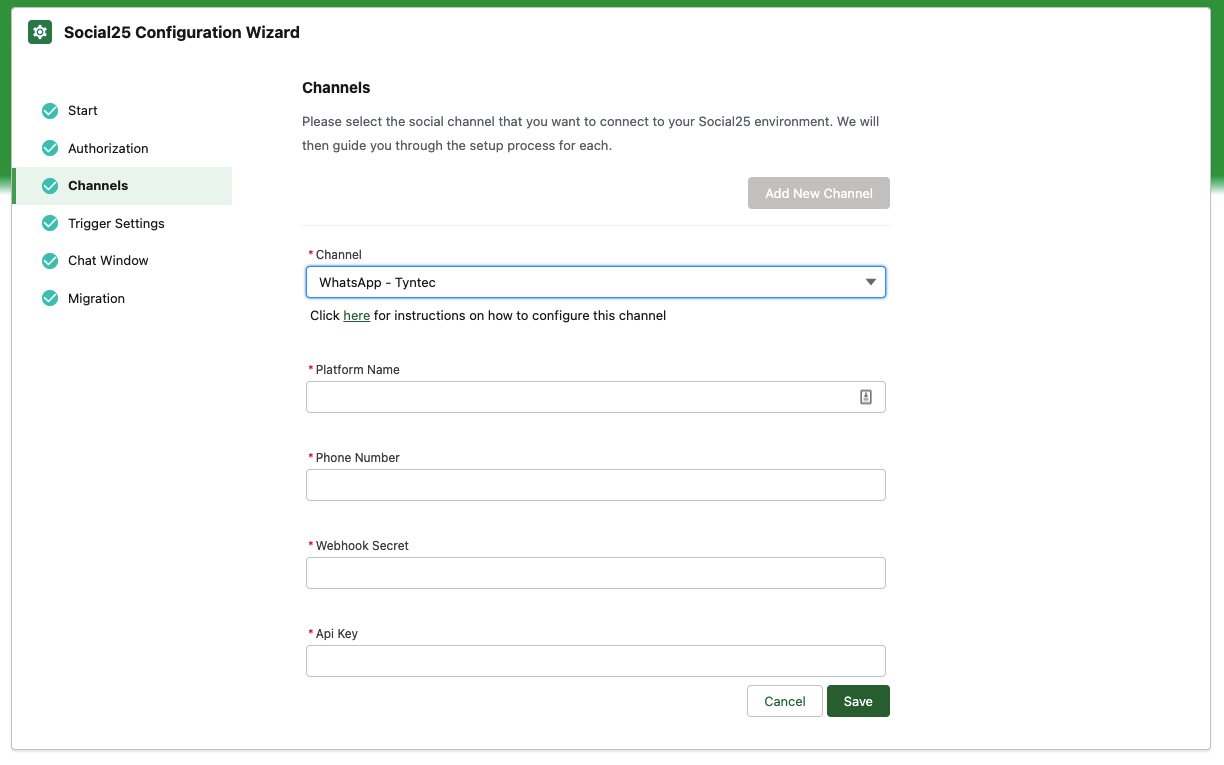
When selecting WhatsApp - Tyntec, you are presented with the following screen
-
Fill in a Platform Name that will allow you to recognise this WhatsApp account
-
Fill in the Phone Number in international format without '+'.
-
Example: for +31 6 12 34 56 78 use 31612345678
-
-
Navigate to the following page: https://my.tyntec.com/products/conversations/whatsapp
-
Remember the API Key Name of the WhatsApp number you want to configure with Social25
-
Navigate to API Settings in the left column
-
Click Show in the API key column next to the Name from the previous bullet
-
Copy/paste this value in the Api Key field of the Social25 Configuration Wizard
-
-
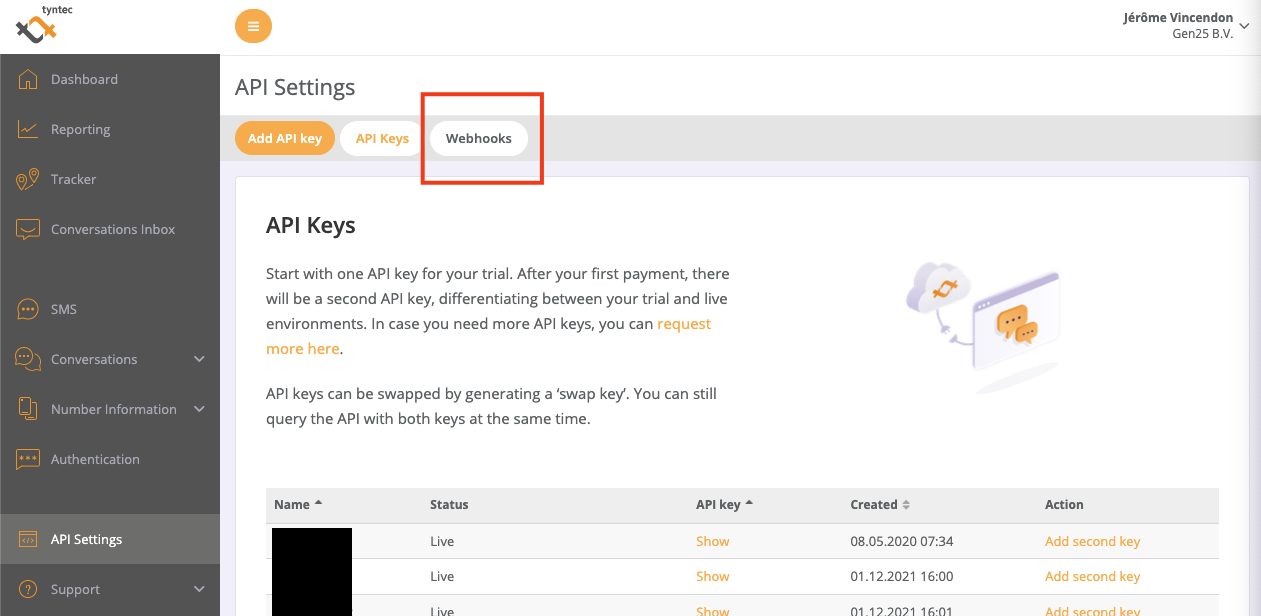
In the top menu, navigate to Webhooks
-
Select the correct API Key
-
In the SMS section, fill in the following:
-
Method: POST
-
Webhook URL:
-
For Sandbox: https://social25-staging.herokuapp.com/v1.0/webhook/tyntec/messages/<whatsapp-account-id>/<your-webhook-secret>/
-
For Production: https://social25.herokuapp.com/v1.0/webhook/tyntec/messages/<whatsapp-account-id>/<your-webhook-secret>/
-
-
For the whatsapp-account-id, go to this page in Tyntec
-
Click the drop down next to Waba Name (ID)
-
You should see an Account Name with an ID after it, in the form of bc8e98f4-6ea0-4165-a4b4-51095abdeade. That’s the one you need.
-
-
For the webhook secret, we suggest using a UUID generator: https://www.uuidgenerator.net/
-
-
Press Save changes
-
Copy/paste the webhook secret in the Webhook Secret field in the Social25 Configuration Wizard
-
Press Save
-
If everything went well, your screen should look like this:
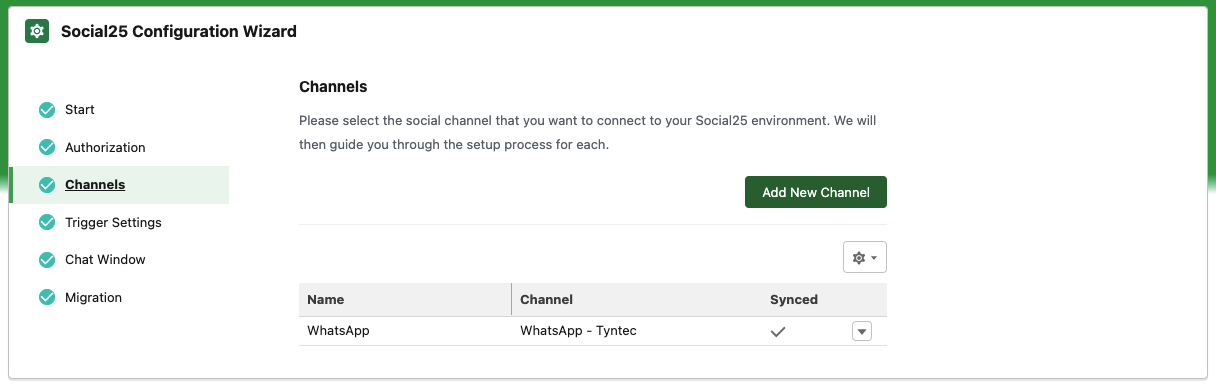
If not, please contact support@gotallo.com