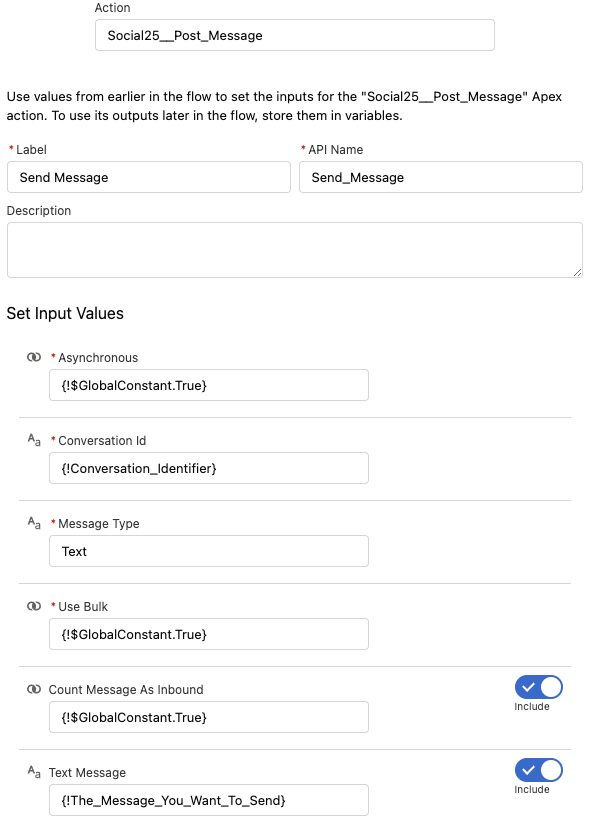
GoTallo works with Marketing Cloud Next to help you communicate effectively through various messaging channels.
You can use the GoTallo flow action to send messages via SMS, WhatsApp, RCS, Facebook, and Instagram direct messaging. This allows you to connect with your audience on the platforms they prefer, which can lead to better engagement.
To begin, add the GoMeddo flow action to your campaign journey in Marketing Cloud Next. From there, you can tailor your messaging approach based on the features of each channel. For example, you might send quick updates as standard messages or use templates for consistent branding.
With this integration, you can:
-
Send standard messages for direct communication.
-
Use templates for automated messaging.
-
Monitor delivery and engagement metrics to improve your campaigns.
By using GoTallo with Marketing Cloud Next, you can make your communication more efficient and ensure your messages are consistent across different platforms.
How to set this up from within your Marketing Cloud Next Campaign
Use our flow actions to create a conversation and related message:
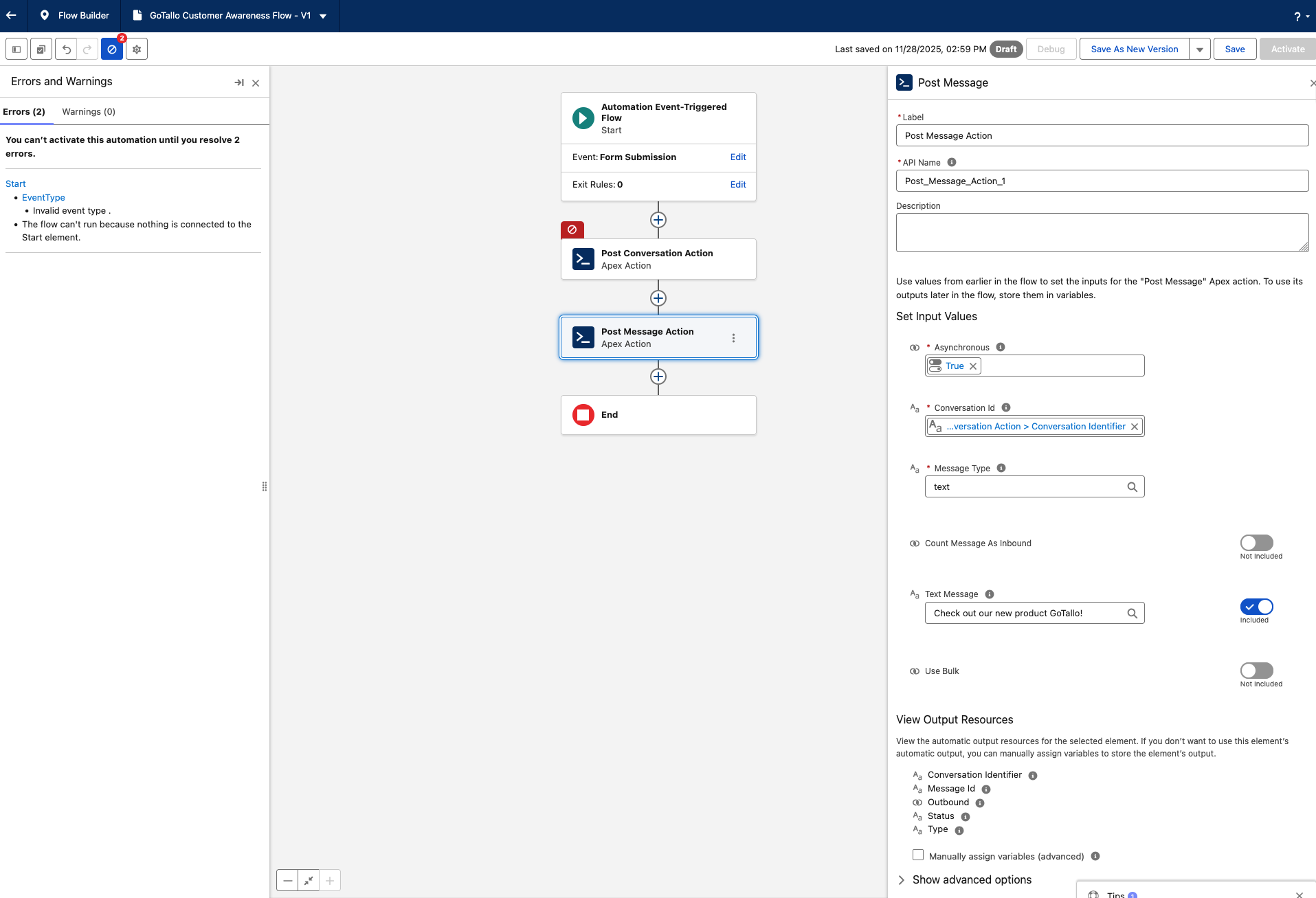
First create the conversation
-
Add an Action element in the Flow Builder.
-
Select Social25__Post_Conversation.
-
Enter the following two input values:
|
Phone Number |
This should be the user's phone number. The GoTallo API will use this phone number to initiate the conversation |
|---|---|
|
Platform Id |
This is the platform id of the platform you want to use |
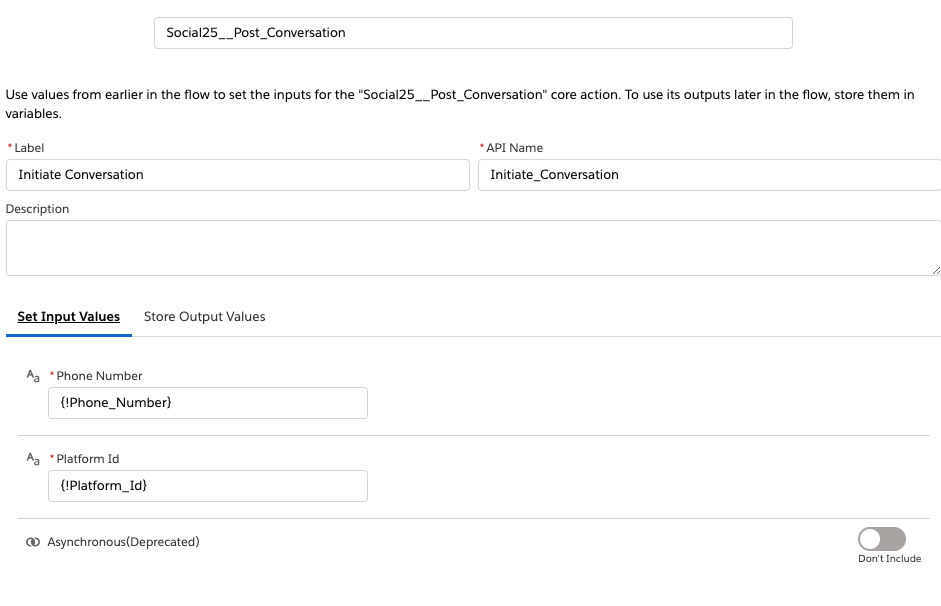
This action has two output values:
|
Conversation Identifier |
This value should be placed on a Heroku_Conversation_Id__c field on the object from which you want to chat. The chat window will load the conversation based on this value. |
|---|---|
|
User Identifier |
This value should be placed on the SocialPersona that you can in turn relate to the user's contact |
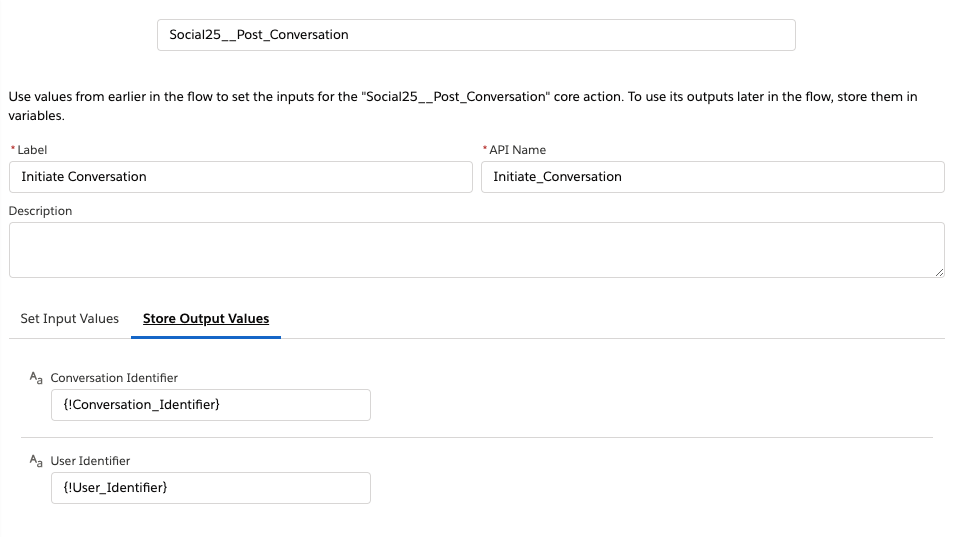
Now create and send the actual message
-
Add an Action element in the Flow Builder
-
Choose Social25__Post_Message
-
Fill in the following 5 input values
|
Asynchronous |
Should be set to TRUE or FALSE. If you trigger the Flow after a record insert/update, then it is mandatory to set this value to TRUE |
|---|---|
|
Conversation ID |
This is the conversation ID to which you want to send the message |
|
Message Type |
Text/Template |
|
Use Bulk |
When you want to send a lot of messages in one transaction you can set this option to TRUE. It will send all the messages in one callout. Be aware that you won't get a status result when this option is enabled. |
|
Count Message As Inbound |
By default the Unread Messages count will reset after an outbound message. With this option set to TRUE the Unread Messages will increase with this message |
|
Text Message |
This is the text you want to send |